chap-core
Run models in Chap with data from DHIS2 / Modeling App
This short guide describes how to import climate and environmental data, configure a model in the DHIS2 Modelling App, and extract the modelling payload.
1. Import data using the Climate App
Use the Climate App to import climate and environmental indicators at the same organisational level and period type (weekly or monthly) as your disease data. Indicators of interest include air temperature, CHIRPS precipitation (or ERA5-Land precipitation if you know this performs better), relative humidity, NDVI (vegetation), and urban/built-up areas. You may also include other disease-relevant indicators such as soil moisture, surface water, land surface temperature, or elevation. Ensure all imported data are available as data elements.
2. Run analytics
After importing the data, run analytics in DHIS2.
3. Open the Modelling App
Open the Modelling App and confirm you are using version 4.0.0 or later.
4. Create a model
Go to Models, click New model, and select CHAP-EWARS Model. This model supports additional covariates. Give the model a clear name such as extract_data. Leave n_lags, precision, and regional seasonal settings unchanged.
5. Add covariates
Add all covariates you imported via the Climate App by typing their names and using underscores instead of spaces (for example NDVI or relative_humidity). Save the model when finished.
6. Open “New evaluation” form
Go to “Overview” and click “New evaluation. Select the period type, date range, organisation units, and the model you just created. Open “Dataset Configuration” and map each covariate to its corresponding data element you just imported data to. Save the configuration.
7. Run a dry run
Click “Start dry run” to verify that the data and configuration are accepted. Continue only if the dry run succeeds.
8. Download the payload
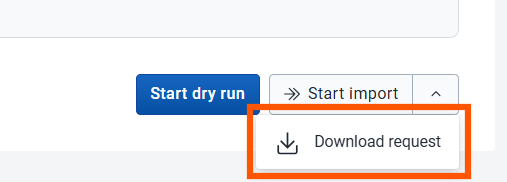
Click Download request to save the modelling payload to your computer as JSON-file.
Converting a Modeling App request to CSV and GeoJSON
If you have a JSON request payload from the DHIS2 Modeling App (the create-backtest-with-data format), you can convert it directly to a Chap-compatible CSV and GeoJSON file pair using chap convert-request:
chap convert-request example_data/create-backtest-with-data.json /tmp/chap_convert_doctest
This reads the JSON file and produces two files:
/tmp/chap_convert_doctest.csv– a pivoted CSV withtime_period,location, and feature columns/tmp/chap_convert_doctest.geojson– the region boundaries extracted from the request