TUI dashboard
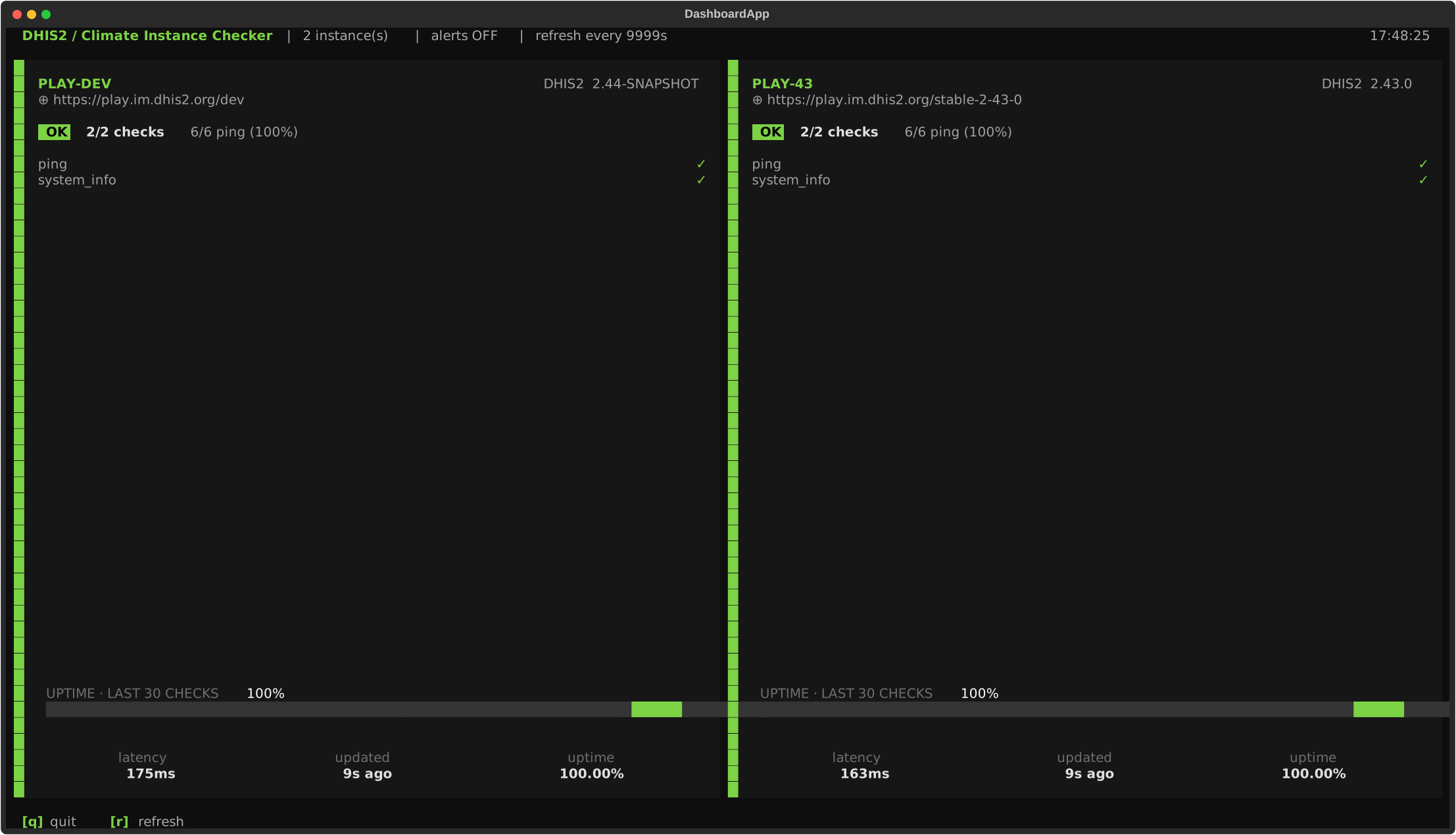
A Textual-based dashboard with one tile per configured instance. Designed to be left on a TV / second monitor so the operator sees at a glance what's up.
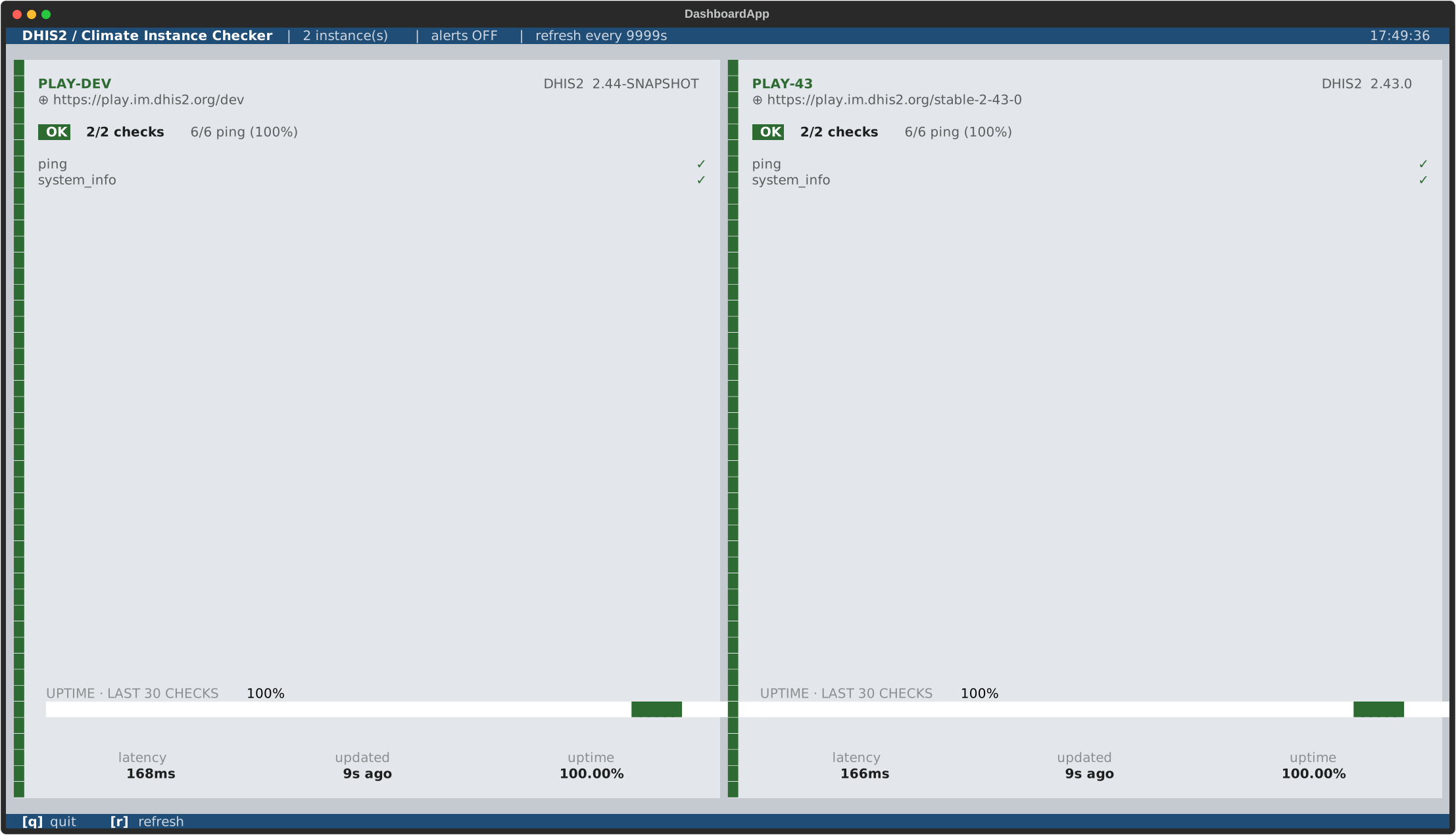
The dhis2 theme (light mode, DHIS2 blue strip) for embedding in a DHIS2
ops environment:
Layout
- Header:
chap-checker | N instance(s) | alerts ON|OFF | refresh every Ns ... HH:MM:SS. The clock ticks every second. - Grid: adaptive column count — 1 column for 1 instance, 2 for 2-4, 3 for 5-9, 4 for 10+.
- Per tile:
- Title row: instance name in bold-green caps, DHIS2 version (extracted from the
dhis2_system_infocheck) right-aligned. - URL row, dimmed.
- Status pill —
OK / WARN / FAIL / ERRORcolored, plusX/Y checkssummary andX/Y ping (Z%)cumulative ratio. CHECKSsection: one row per check with a colored status symbol (✓ ! ✗ !! ·). Names are shown with thedhis2_namespace stripped (chap_is kept sochap_pingstays distinct fromping).- Stats footer (docked to the bottom of the tile): latency (average duration across run checks),
updated Xs/m/h ago(re-ticks every second), uptime (cumulative ping ratio as a percentage).
- Title row: instance name in bold-green caps, DHIS2 version (extracted from the
- Visual status: a tile's left accent stripe and background tint follow the worst current status, so a FAIL tile is unmistakable in peripheral vision.
Keys
| Key | Action |
|---|---|
r |
Refresh immediately (otherwise auto every --interval seconds). |
Ctrl+R |
Reload chap-checker.toml from disk (local mode only). |
Ctrl+P |
Open the command palette. |
q |
Quit. |
There is no in-UI alert toggle — see below.
Command palette
Textual ships a built-in command palette (Ctrl+P) and chap-checker
registers a small Provider that adds dashboard-specific entries, so the
same items are available in both the TUI and the browser dashboard served by chap-checker serve:
- Refresh now — re-run every check immediately.
- Reload config — re-read
chap-checker.tomlfrom disk and apply the new targets / auth / check sets in place. Tiles for surviving instances hot-swap; if the instance set itself changed, the next tick reconciles the grid. - Open GitHub repository — opens
github.com/dhis2-chap/chap-checkerin your default browser. - Open documentation — opens this docs site.
Type to filter the list. The palette also exposes Textual's built-in system commands (toggle dark mode, take a screenshot, change theme), which are useful for tweaking the look on a TV.
Add more entries by extending
ChapCheckerCommands
in src/chap_checker/dashboard.py.
Alerts decision is at launch
chap-checker tui               # alerts OFF (the "TUI is enough" default)
chap-checker tui --alerts      # also dispatch Slack on transitions
When --alerts is set, the same per-instance alerts = [...] opt-in from the
TOML applies; instances without an opt-in stay silent. A runtime toggle would
invite accidental clicks during demos — keeping it explicit at launch matches
the verify --no-alerts semantics.
Tweaking the refresh cadence
chap-checker tui --interval 10         # tick every 10s
chap-checker tui --interval 120        # tick every 2 minutes
--interval accepts >= 2.0. The clock and "updated X ago" labels still
tick every second; only the actual probes wait for the interval.
Connect mode (cross-machine consistency)
# On the TV machine (the daemon — runs the checks, fires alerts):
chap-checker serve --host 0.0.0.0 --alerts

# On the laptop (thin client — just renders, no checks):
chap-checker tui --connect http://tv-host:8765
In --connect mode the TUI does not load a config or run any checks itself.
It polls {URL}/api/state each refresh tick and renders whatever the
daemon reports. If the daemon goes down, a red banner appears across the
top; the last-known tiles stay on screen and the TUI reconnects on the
next tick once the daemon comes back.
--connect is mutually exclusive with --config, --state, and
--alerts (those settings live on the remote daemon). To swap the
remote config, POST /api/reload on the daemon — or run
chap-checker tui locally on the daemon host and hit Ctrl+R.
Auth prompt
If the remote daemon requires a bearer token ([auth] configured) and
you didn't pass --token / --token-env, the TUI pops a centred prompt
on top of the dashboard:
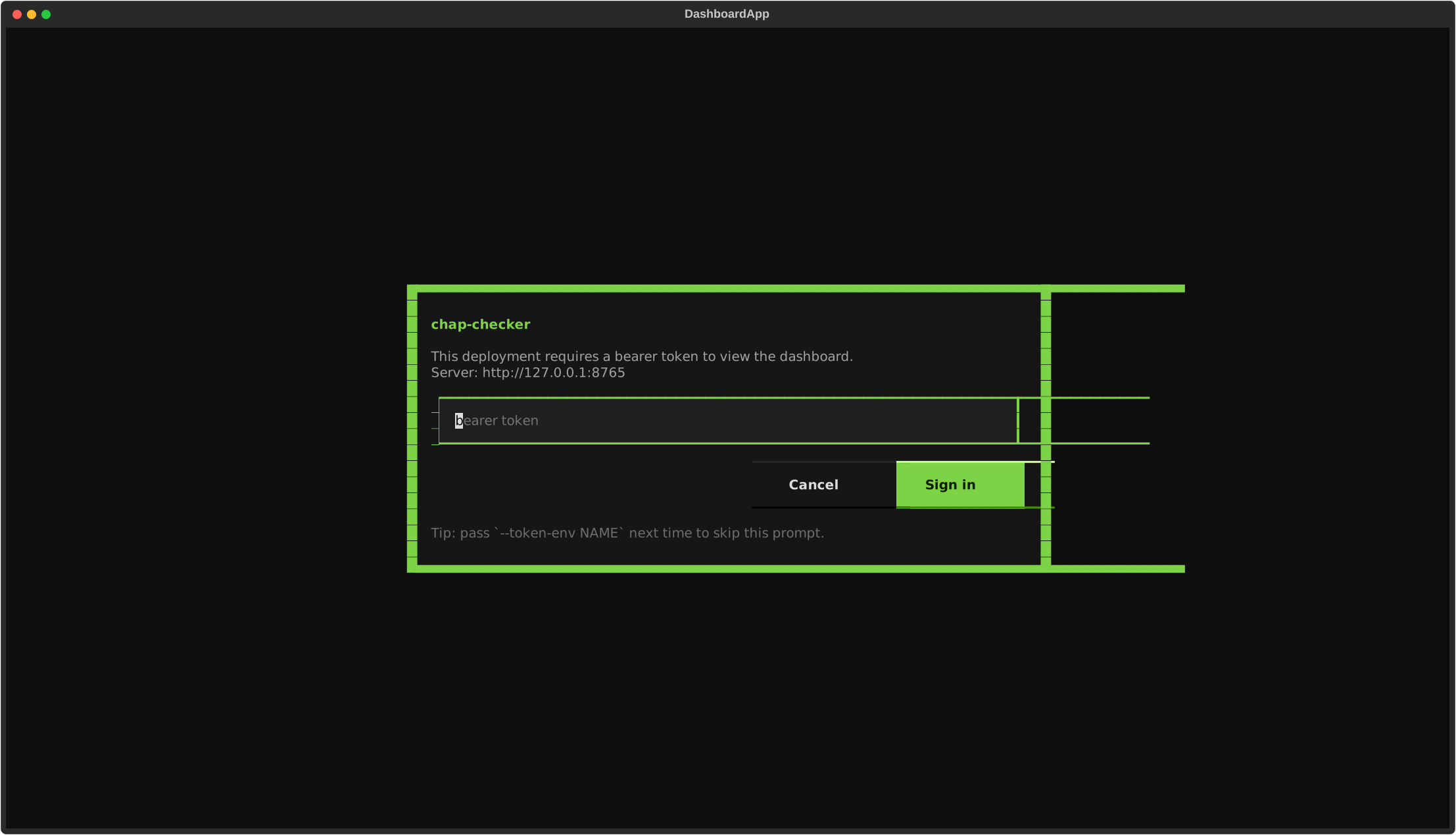
Type the token and press Enter (or click Sign in) to rebuild the
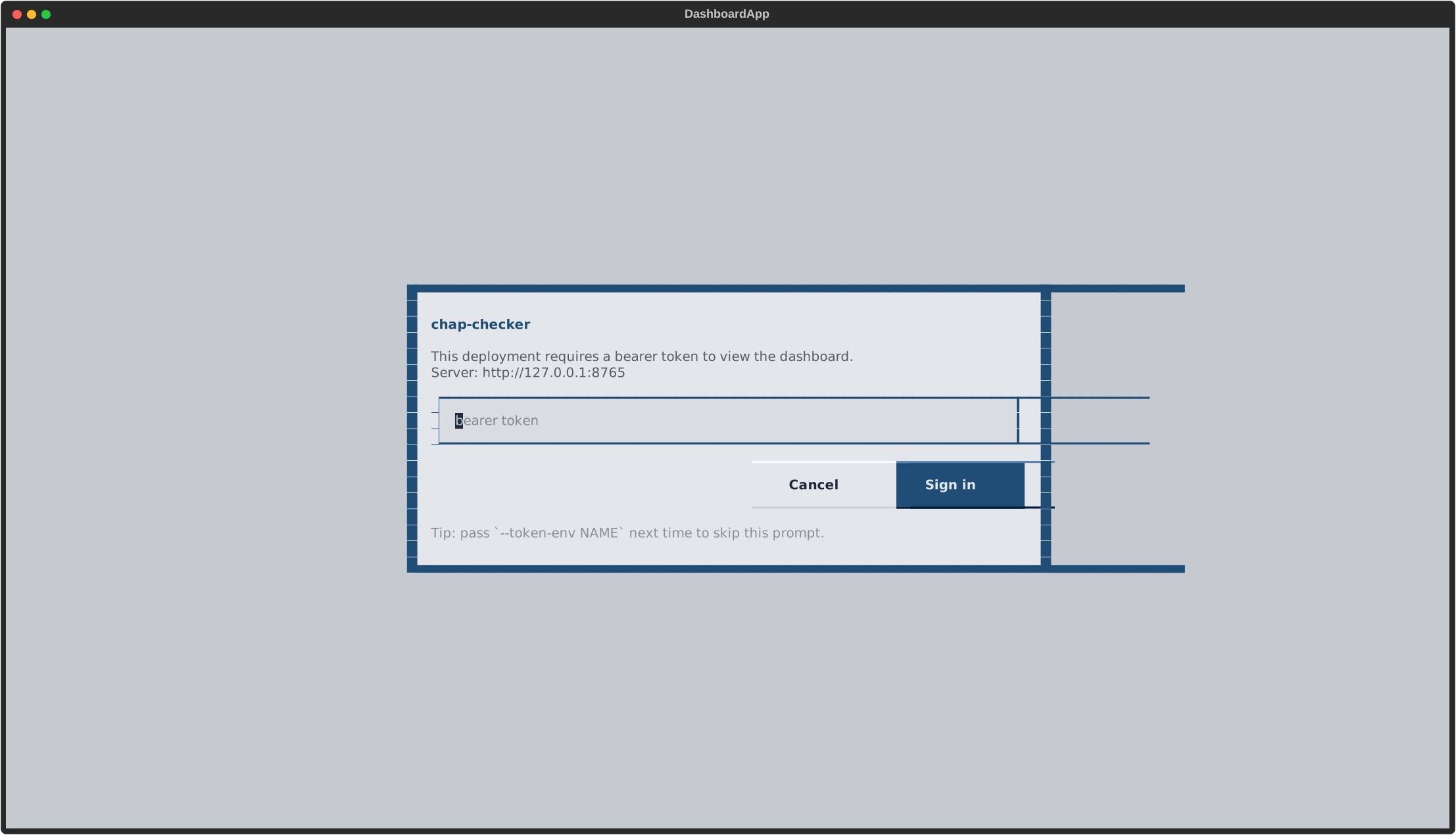
client with the bearer header and refresh. The modal picks up the
daemon's [ui].theme before paint, so the dhis2 deployment looks like
this:
Escape (or Cancel) paints the "auth rejected" banner instead and stops
re-prompting on subsequent ticks — sign in via --token-env and
relaunch.
How the TUI relates to verify and serve
All three subcommands share one runner (run_targets()), one tile
projection (DashboardServer), and the same per-instance checks
filter and alerts opt-in. In local mode the TUI and serve each
embed their own DashboardServer; in --connect mode the TUI is a
thin client of the serve daemon's DashboardServer. Cron verify
is independent of both; if you want a single authoritative alert
path, stop running cron and let chap-checker serve --alerts fire
instead.
Regenerating the screenshots
The dashboard image at the top is checked in at
docs/assets/dashboard.svg. To re-capture against a real config:
uv run python scripts/capture_dashboard.py --config chap-checker.toml \
    --output docs/assets/dashboard.svg
The auth-modal images are produced by a sibling script that drives a
TUI client (DashboardApp(connect_url=URL)) against a running daemon:
# Phosphor variant (default theme - no [ui].theme in the daemon config).
uv run python scripts/capture_token_modal.py \
    --connect http://127.0.0.1:8765 \
    --output docs/assets/tui-token-modal.svg

# dhis2 variant (daemon config has [ui] theme = "dhis2").
uv run python scripts/capture_token_modal.py \
    --connect http://127.0.0.1:8765 \
    --output docs/assets/tui-token-modal-dhis2.svg
See
scripts/capture_dashboard.py
and
scripts/capture_token_modal.py
in the repo for how the screenshots are produced (Textual pilot mode
+ app.save_screenshot()).